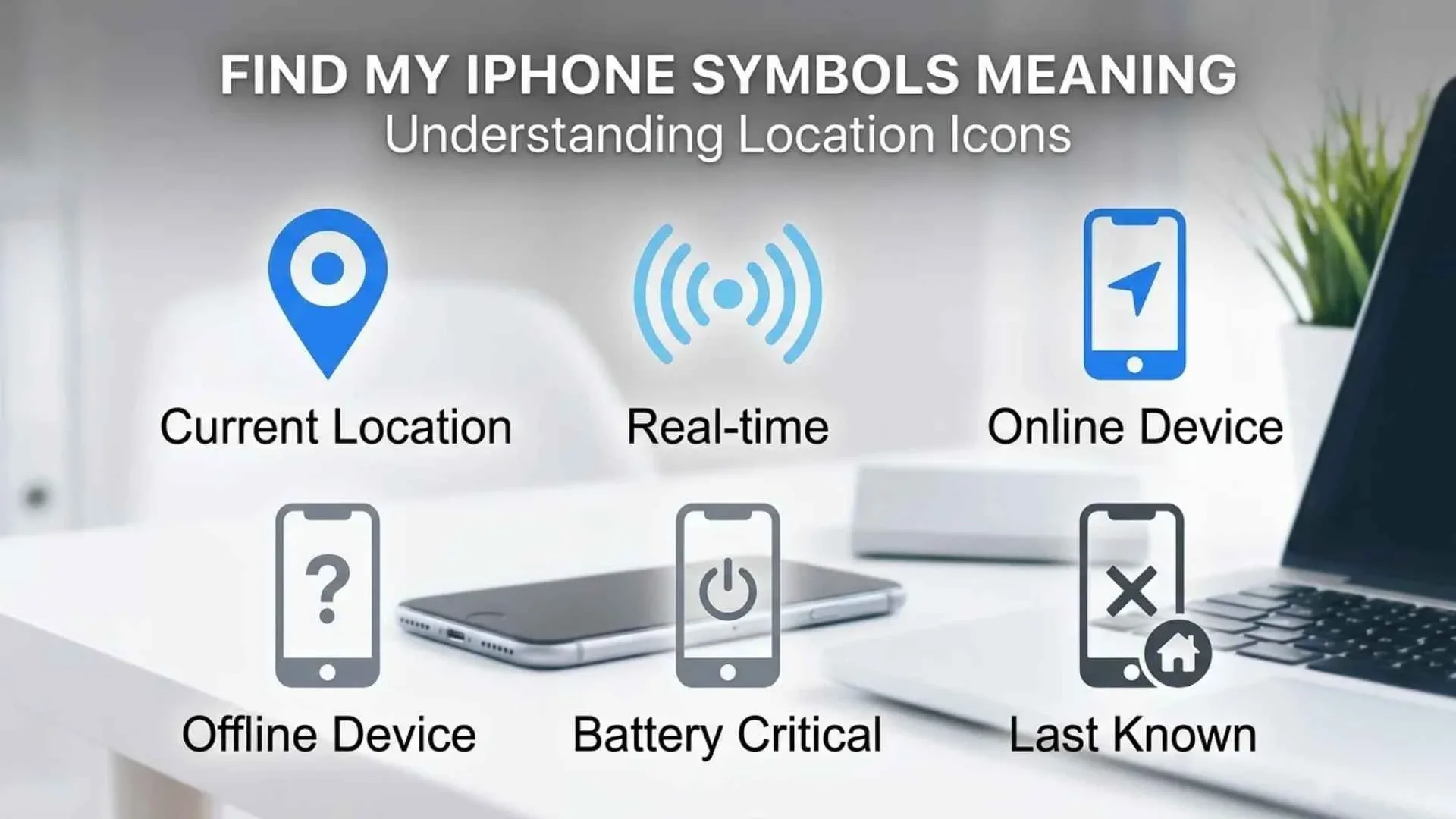
Apple’s Find My app uses map markers, device pictures, arrows, locks, speakers, batteries, and notification symbols to show where an iPhone is, whether its location is current, and which recovery actions are available.
Understanding the Find My iPhone symbols meaning can help you tell the difference between a phone that is nearby, offline, moving, out of battery, or impossible to locate. You may see these symbols in the Find My app, on iCloud.com/find, in location alerts, or while using Precision Finding.
Quick Meaning
Find My iPhone symbols communicate a device’s location, connection status, battery condition, and available actions. A device marker shows where the iPhone is located, a speaker plays a locating sound, a lock activates Lost Mode, a navigation arrow opens directions, and “No location found” means Find My cannot currently determine the device’s position.
Find My iPhone Symbols Overview Table
| Symbol or Indicator | Primary Meaning | Where It Appears | What You Should Do |
| iPhone device icon | Represents a registered iPhone | Devices list and map | Tap it to view location and recovery options |
| Circular device marker | Shows the phone’s current or last known position | Find My map | Check the location time and accuracy |
| Blue location marker | Usually represents your current position | Find My map | Use it to compare your location with the missing phone |
| Blue accuracy circle | Shows the estimated location area | Around a map marker | A smaller circle generally means greater accuracy |
| Navigation arrow | Opens directions or centers the map | Device card or map | Tap it to navigate toward the device |
| Speaker icon | Plays a sound on the iPhone | Device information card | Use when the phone may be nearby |
| Lock or Lost Mode symbol | Protects a missing iPhone | Mark As Lost section | Activate it if the device is missing |
| Bell or notification control | Enables Notify When Found | Notifications section | Turn it on when no current location is available |
| Battery symbol | Shows remaining device power when available | Device information card | Act quickly if the battery is low |
| Trash can or erase option | Remotely deletes the device’s data | Device information card | Use only when recovery appears unlikely |
| “Offline” label | Device is not currently communicating directly | Under the device name | Check the last known location and enable notifications |
| “No location found” | Find My cannot provide a usable location | Under the device name | Enable Notify When Found |
| Map layers symbol | Changes map appearance | Top of the map | Choose standard, satellite, 2D, or 3D views |
| Plus symbol | Adds an item or shares a location | Find My tabs | Use it to add supported items or people |
| Direction-and-distance arrow | Guides you toward a nearby supported item | Precision Finding screen | Follow the onscreen movement instructions |
Apple may adjust the appearance, wording, or placement of these controls between iOS versions, device models, and regions. The function is more important than the exact color or shape.
What Do Find My iPhone Symbols Mean?
Find My symbols are practical interface signs rather than decorative or traditional symbols. Each one represents a device, location condition, command, or security action.
The Find My app is organized around four main categories:
- People: Locations shared by friends or family members
- Devices: Apple products connected to your Apple Account
- Items: AirTags and compatible Find My network accessories
- Me: Your own location-sharing settings
When you select an iPhone under Devices, Find My opens a device card. This card may show the phone’s map location, distance, battery information, last update, directions, Play Sound, Notify When Found, and Lost Mode controls.
Apple states that Find My can display either the device’s current position or its last known position. When a device cannot be located, the app may show “No location found” and offer Notify When Found.
Find My App Icon Meaning
The Find My app icon resembles a circular radar or target with a central dot. Its design communicates searching, positioning, and locating.
The expanding circular rings suggest that the system is detecting a signal or narrowing down a location. The central point represents the person, device, or item being located.
Unlike an ancient emblem, the Find My icon has no religious, mythological, or cultural meaning. It belongs to the modern visual language of digital navigation, where circles, radar waves, pins, and crosshairs commonly represent location detection.
iPhone Device Icon Meaning
A small iPhone-shaped picture identifies an iPhone associated with your Apple Account or Family Sharing group.
The icon helps distinguish the phone from other registered products, such as:
- iPad
- Mac
- Apple Watch
- AirPods
- Beats headphones
- AirTag
- Compatible third-party accessories
Tapping the iPhone icon or its name opens the device information card. The card does not merely identify the phone. It also connects you to available locating and security features.
A device appearing in the list does not automatically mean it is currently online. Always read the status text beneath its name.
Map Marker and Device Circle Meaning
The device marker indicates the current or most recently reported location of the selected iPhone.
When the location is current, the map can help you see where the phone is now. When only an earlier position is available, Find My may show the last known location and the time associated with it.
A map marker should therefore be interpreted together with:
- The update time
- The Online or Offline status
- The accuracy area
- The device’s battery condition
- Whether the location appears to be changing
A marker is not proof that the phone is still at that exact point. It may represent a location reported before the battery died, the connection stopped, or the device was moved.
Blue Dot and Blue Circle Meaning
The blue dot generally represents your current location on the Find My map, not necessarily the missing iPhone.
A pale blue circle around the dot represents location uncertainty. The device may be somewhere within that broader area. A smaller circle usually indicates a more precise location, while a large circle means the system has less certainty.
Apple explains that location-enabled apps use a blue marker for the user’s position. When the position cannot be determined precisely, a blue circle appears around it, with a smaller circle indicating greater precision.
Location accuracy can be influenced by:
- GPS reception
- Nearby buildings
- Wi-Fi information
- Cellular towers
- Bluetooth signals
- Indoor or underground placement
- Whether Precise Location is enabled
Do not assume that the center of a large accuracy circle identifies the exact room, house, or vehicle containing the iPhone.
Navigation Arrow and Directions Symbol Meaning
The navigation arrow represents movement toward the selected device or a command to open directions.
If Find My has a usable map location, tapping Directions opens Apple Maps and creates a route from your current position to the device. Apple confirms that turn-by-turn directions are available when the device’s location appears on the map.
The symbol does not continuously track the phone like a live pursuit system in every situation. Directions may lead to the last reported position rather than the device’s present location.
Before traveling to the location, check when it was last updated. If the phone appears to be at an unfamiliar private property, do not confront anyone. Contact local authorities if theft is suspected.
Speaker Icon and Play Sound Meaning
The speaker symbol means Play Sound. It causes the selected iPhone to emit an audible locating alert.
This feature is most useful when the phone is:
- Under furniture
- Inside a bag
- Between car seats
- In another room
- Left at a nearby workplace
- Hidden under clothing or bedding
The sound can play even when the device is set to Silent mode or its volume has been muted.
Play Sound requires the command to reach the device. If the iPhone is offline, the sound may remain pending and play after it reconnects.
This icon does not mean that the microphone is active, that someone is listening, or that Find My is recording the area around the phone.
Lock Symbol and Lost Mode Meaning
A lock-related symbol or the Mark As Lost control activates Lost Mode.
Lost Mode is designed to protect a missing iPhone while preserving the possibility of recovery. It can:
- Lock the iPhone with its passcode
- Display a custom message
- Show contact information on the Lock Screen
- Suspend supported Apple Pay cards and passes
- Continue helping the owner locate the device
Apple recommends marking an iPhone or iPad as lost when it cannot be found immediately.
The Lost Mode status may appear as:
- Pending: The command has not yet reached the offline device
- Activated: Lost Mode is active on the device
The lock symbol does not necessarily mean someone entered the wrong passcode. Within Find My, it usually relates to the owner’s remote protection command.
Bell and Notify When Found Meaning
A bell or notification option represents Notify When Found.
This setting is useful when Find My cannot currently locate the iPhone. Once the device becomes detectable again, Apple can send a notification with updated information.
You may see this option when:
- The phone is powered off
- Its battery has run out
- It has no usable network connection
- Its location has not yet been reported
- The Find My network has not detected it recently
Apple specifically directs users to turn on Notify When Found when “No location found” appears.
The bell does not force the phone to connect. It tells the system to alert you when new location data becomes available.
Battery Symbol Meaning

The battery symbol shows the missing device’s reported charge level when that information is available.
A nearly empty battery means the location may soon stop updating. In that situation:
- Record or screenshot the current location.
- Turn on Notify When Found.
- Activate Lost Mode.
- Avoid repeatedly checking the map while ignoring security steps.
- Contact the carrier if the phone may have been stolen.
Apple also offers a Send Last Location setting. When enabled, the iPhone can send its location to Apple as the battery becomes critically low.
The battery icon may not always reflect the phone’s exact present charge. It can represent the latest information received before the connection ended.
“Offline” Meaning in Find My
“Offline” means the device is not currently communicating with Find My through its usual internet connection.
An iPhone may appear offline because it is:
- Turned off
- Out of battery
- In Airplane Mode
- Outside cellular or Wi-Fi coverage
- Temporarily disconnected
- Damaged
- Unable to report a fresh location
Offline does not automatically mean Find My is useless. If Find My network was enabled before the phone disappeared, nearby Apple devices may securely detect its Bluetooth signal and relay an approximate location to the owner.
Apple describes the Find My network as a crowdsourced network of more than a billion Apple devices that can detect missing devices or accessories through Bluetooth and report an approximate location.
An offline device may therefore still appear on the map, but location updates can be delayed or intermittent.
“No Location Found” Meaning
“No location found” means Find My does not currently have a usable location to display.
It does not necessarily mean:
- Find My has been permanently disabled
- The iPhone was erased
- Someone removed the SIM card
- The device left the country
- The phone can never be recovered
The message may appear when the battery is dead, the device has been offline for an extended period, or no Find My network participant has detected it.
Turn on Notify When Found and leave the device associated with your Apple Account. Removing it can weaken important ownership and security protections.
Green, Gray, and Other Status Colors
Users often search for the meaning of green or gray circles in Find My. However, colors and marker styles can vary by iOS release, map view, device category, selected state, and accessibility settings.
In general:
- A brighter or active-looking marker often indicates a selected or recently located device.
- A gray or dimmed appearance commonly suggests unavailable, older, or inactive information.
- Blue normally relates to the user’s own map location or navigation.
- Red may be used for warnings, destructive actions, or urgent lost-device controls.
Do not rely on color alone. The written labels such as Now, Offline, No location found, Pending, or Activated provide more dependable meaning.
Trash Can and Erase This Device Meaning
The erase option represents a remote factory erase. It is the most serious action in the device card.
Remote erasing is intended to protect personal data when recovery appears unlikely. It can delete photos, messages, accounts, documents, and other local information from the iPhone.
Before erasing:
- Activate Lost Mode
- Review the latest location
- Check backup availability
- Contact your carrier
- Consider filing a police report
- Confirm that you selected the correct device
Erasing is not the same as removing the device from your Apple Account. Apple warns that removing a stolen device from the account can remove Activation Lock, making the phone easier for another person to use or resell.
Map, Satellite, 2D, and 3D Symbols
The map layers control changes how the Find My map appears.
Available views may include:
- Explore or standard map: Shows roads, labels, and ordinary map details
- Satellite: Displays aerial imagery
- 2D: Presents a flat overhead view
- 3D: Adds building height and perspective where supported
- More options: Provides additional map controls
Apple notes that the button at the top right indicates whether the map is in standard or satellite view. Users may also switch between 2D and 3D in supported locations.
Changing the map style does not improve the underlying location signal. It only changes how the location is displayed.
Precision Finding Arrow Meaning
The large directional arrow in Precision Finding points toward a nearby supported device, person, AirTag, or accessory.
The screen may also display:
- Estimated distance
- Directional movement
- “Here” or a nearby-location message
- Instructions to move around
- A weak-signal warning
- A request for more light or a clearer path
Precision Finding uses compatible hardware, including Ultra Wideband technology on supported iPhone models. Apple describes the interface as showing an arrow toward the target and an estimate of how far away it is.
This symbol is more precise than an ordinary map pin, but walls, floors, furniture, interference, and device compatibility can affect the experience.
History and Origin of Find My Symbols
Find My symbols developed from familiar digital map and security conventions rather than ancient symbolism.
Apple introduced Find My iPhone as a device-recovery service and later combined device locating with location sharing and item tracking in the broader Find My app. As its functions expanded, the interface adopted recognizable symbols:
- Radar rings for searching
- Map markers for position
- Arrows for navigation
- Speakers for sound
- Locks for security
- Bells for alerts
- Batteries for power
- Trash cans for deletion
These visual metaphors work because users already understand them from maps, computers, alarms, and physical security systems.
The symbols continue to evolve as Apple adds functions such as the Find My network, AirTag support, separation alerts, shared item locations, and Precision Finding.
Technical Meaning of Find My Symbols
Technically, Find My symbols summarize data received from several location and communication systems.
Depending on the device and conditions, Find My may use:
- Global Positioning System data
- Wi-Fi positioning
- Cellular network information
- Bluetooth
- The crowdsourced Find My network
- Ultra Wideband for nearby precision
- A previously stored last location
The map icon does not reveal which method produced every update. It simply presents the best location information available to the system.
The Find My network is designed so nearby Apple devices can detect a missing device’s Bluetooth signal and securely relay an approximate location. This helps locate supported devices even when they are not connected directly to Wi-Fi or cellular service.
Where Find My iPhone Symbols Are Used
Find My symbols appear across several Apple services and devices.
Find My App
The complete interface appears on iPhone, iPad, and Mac, although layouts differ by screen size and operating system.
iCloud.com/find
The web interface lets users select devices, review locations, play sounds, mark devices as lost, and erase them. Apple says users can access iCloud.com/find without a verification code when a trusted iPhone has been stolen.
Apple Watch
The Find Devices app on Apple Watch can locate connected Apple products and play sounds on supported devices.
Family Sharing
Family members’ Apple products may appear under the Devices tab when Family Sharing has been configured.
Location Notifications
Find My symbols may also appear in alerts about shared locations, devices left behind, unknown tracking accessories, or newly detected locations.
Common Variations
The same Find My function may appear differently depending on context.
A speaker may be shown as an outlined icon, a labeled button, or the words Play Sound. Lost Mode may appear as Mark As Lost, Lost Mode, Lost iPhone, Pending, or Activated.
Other variations depend on:
- iOS version
- iPhone model
- Device type
- Region and language
- Light or dark appearance
- Accessibility settings
- Whether the device is online
- Whether the user is viewing Find My or iCloud.com
Because of these variations, users should read the label next to an icon rather than identifying it solely by shape or color.
Common Misconceptions
A Map Pin Always Shows the Live Location
A pin may show a last known position. Check the update time before treating it as current.
Offline Means Find My Was Turned Off
Offline usually means the device is not currently connected. Find My network may still report its location.
Play Sound Works Only When the Ringer Is On
The locating sound can play even when the iPhone is in Silent mode or its volume is muted.
A Large Blue Circle Shows the Exact Address
It represents uncertainty. The device may be anywhere within the estimated area.
Erasing the iPhone Removes It From Your Account
Erasing and removing are separate actions. Keep a stolen iPhone associated with your account to preserve Activation Lock.
A Gray Marker Proves the Battery Is Dead
A gray or dim display can indicate unavailable or older information, but the accompanying text gives the clearest status.
Interesting Facts About Find My Symbols
- The app icon resembles radar because Find My searches for signals rather than relying on one tracking method.
- Play Sound can override Silent mode, making the speaker symbol useful even when ordinary calls cannot be heard.
- An offline iPhone can sometimes still be located through nearby Apple devices participating in the Find My network.
- The map may show a historical position, so the location time can be more important than the pin itself.
- Notify When Found is a waiting instruction, not a command that forces the phone to reveal its location immediately.
- Precision Finding uses a directional arrow instead of only a map pin because it is designed for close-range searching.
- A battery symbol can become a time-sensitive warning because location reporting may end when the remaining power is exhausted.
- Lost Mode protects both access and payment features by locking the device and suspending supported Apple Pay cards.
- Map layers affect appearance, not accuracy. Satellite view may help identify buildings, but it does not strengthen the device’s location signal.
- Find My must generally be enabled before the device disappears. Apple states that a device not previously set up with Find My will not appear for locating, marking as lost, or remote erasing.
Related Symbols
Apple Maps Location Arrow
This arrow shows your current position or direction of travel. It relates to navigation rather than device recovery.
Location Services Arrow
The status-bar arrow indicates that an app or system service is using or has recently used location information.
AirTag Icon
The AirTag or item symbol represents a personal object registered under the Items tab, not an iPhone under Devices.
Bluetooth Symbol
Bluetooth may help detect nearby Find My devices, but the Bluetooth icon itself does not mean a lost iPhone has been located.
Activation Lock
Activation Lock is a security feature connected to Find My. It helps prevent another person from activating and using a lost or stolen device.
Apple Maps Pin
A standard Maps pin marks a place or selected point. A Find My device marker represents the reported location of a registered device or item.
Frequently Asked Questions
What does the green circle mean on Find My iPhone?
A green or active-looking circle commonly indicates a selected, available, or recently located device, but exact colors can vary by software version and interface. Check the text below the device name. Labels such as “Now,” “Offline,” or “No location found” provide more reliable information than color alone.
What does the gray circle mean on Find My iPhone?
A gray or dimmed marker usually suggests that the device is offline, unavailable, or represented by older location information. It does not prove the phone is permanently lost or out of battery. Open the device card and check its last update time, battery information, and notification options.
What does the blue dot mean in Find My?
The blue dot usually represents your current location on the map. A blue shaded circle around it indicates the estimated accuracy range. A small circle suggests better precision, while a large circle means your position cannot be determined as precisely.
What does “Live” mean on Find My?
“Live” indicates that Find My is receiving frequently updated location information rather than displaying only a static or older position. Availability can depend on the person, device, connection, permissions, and software support. It should not be interpreted as a guarantee of perfect, second-by-second accuracy.
What does “Now” mean under an iPhone location?
“Now” means the displayed location was updated very recently. It is generally more current than a status showing a specific number of minutes or hours. However, all location systems have limits, so the marker may still represent an approximate area rather than an exact physical spot.
What does “No location found” mean?
It means Find My does not currently have enough information to display the device’s location. The phone may be powered off, out of battery, disconnected, damaged, or temporarily undetected. Turn on Notify When Found and activate Lost Mode if the device is missing.
What does “Sound Pending” mean?
“Sound Pending” means the Play Sound command has been sent but has not yet reached the iPhone. This commonly occurs when the device is offline. If the phone reconnects and remains connected to your account, the locating sound may begin playing at that time.
What does “Lost Mode Pending” mean?
Lost Mode Pending means the activation request has not yet reached the missing device, usually because it is offline. The command should activate when the iPhone reconnects. Keep the device in your Apple Account and verify that the contact message and phone number are correct.
Can someone tell when I locate my iPhone?
Simply checking an iPhone’s map location does not ordinarily display a message saying that you viewed it. However, actions such as Play Sound or Lost Mode are noticeable on the missing device. Location-sharing participants may also receive notifications in certain Find My situations.
Why does my iPhone location keep changing?
The marker may shift as Find My receives updated data from GPS, Wi-Fi, cellular networks, Bluetooth, or nearby Apple devices. Movement may also reflect normal location uncertainty. Review the accuracy circle, update time, and overall pattern before concluding that someone is carrying the phone.
Key Takeaways
- Find My symbols represent location, device status, recovery commands, and security actions.
- The iPhone icon identifies the selected phone in the Devices list.
- A map marker can show either a current or last known location.
- The blue dot usually represents your own position.
- A blue accuracy circle shows the possible location area.
- The speaker icon activates Play Sound.
- The lock or Mark As Lost control activates Lost Mode.
- A bell or Notify When Found option alerts you when a new location becomes available.
- “Offline” does not always prevent Find My network detection.
- “No location found” means no usable position is currently available.
- The erase option should be used carefully because it remotely deletes data.
- Written status labels are more dependable than icon colors alone.
Conclusion
Understanding the Find My iPhone symbols meaning turns a confusing map into a practical recovery tool. Device markers show where an iPhone was detected, status labels reveal whether that information is current, and action symbols let you play a sound, request directions, receive an alert, activate Lost Mode, or erase sensitive data.
Always interpret an icon together with its written status, update time, and accuracy area. When an iPhone is genuinely missing, activate Lost Mode early, enable Notify When Found, preserve the device in your Apple Account, and avoid personally confronting anyone at an unfamiliar location.

I am Daniel Brooks, a language researcher and writer with a strong interest in how people use English in everyday conversations. I contribute to LearnNestly because I enjoy turning confusing language topics into straightforward lessons. My goal is to help readers understand not only what a word or phrase means, but also when and how to use it naturally. I focus on clear examples, practical explanations, and useful language knowledge that readers can remember.
Books:
- The Practical English Guide
- Understanding Everyday Words
 Ethan Mitchell
 Amelia Carter