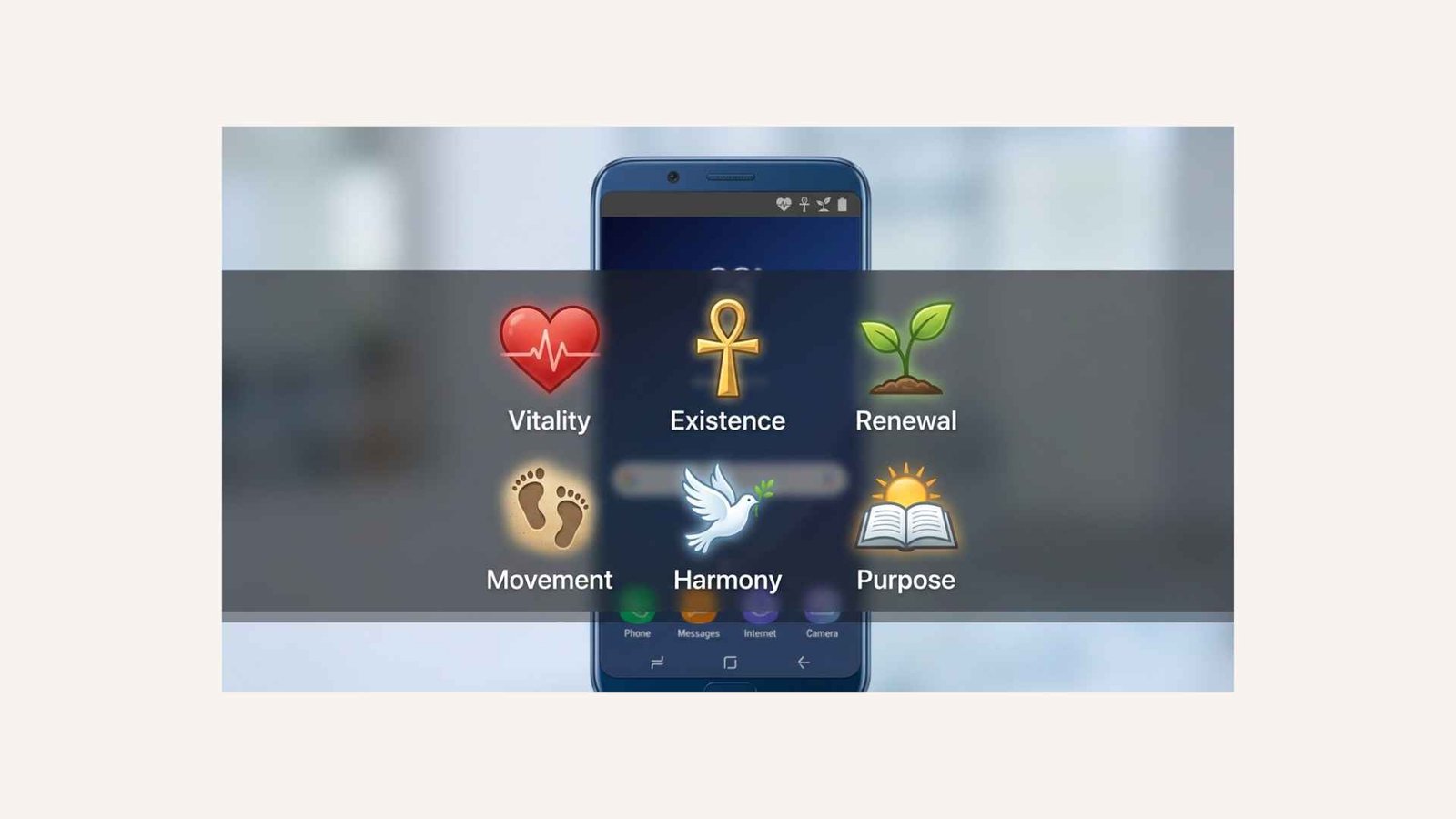
The Samsung phone symbols at top of screen are status and notification icons that show what your Galaxy device is doing. They can reveal your signal strength, internet connection, battery level, sound mode, location activity, active calls, alarms, security services, and new notifications.
Most symbols are harmless status indicators, but some warn about problems that need attention. Their appearance can also change with your Samsung Galaxy model, mobile carrier, Android version, or One UI update.
Some icons remain visible, while others appear only after you swipe down to open the Notification or Quick settings panel.
Quick Meaning
Samsung phone symbols at the top of the screen provide real-time information about your device. Icons on the right usually show system conditions such as battery, signal, Wi-Fi, and sound mode. Icons on the left commonly represent app notifications, missed calls, messages, downloads, updates, or other alerts.
Samsung Status Bar Symbols Overview
| Category | What the Symbols Show | Common Examples |
| Mobile network | Cellular signal and network type | Signal bars, 4G, LTE, 5G, roaming |
| Internet connection | Wi-Fi and mobile data status | Wi-Fi fan, arrows, exclamation mark |
| Battery | Remaining charge and charging condition | Battery outline, percentage, lightning bolt |
| Sound | How calls and alerts behave | Speaker, crossed-out speaker, vibration icon |
| Wireless features | Active short-range connections | Bluetooth, NFC, hotspot |
| Privacy and security | Protected connections or sensor access | VPN key, location marker |
| Calls and messages | Communication activity | Phone handset, missed call, message bubble |
| Device features | Enabled Samsung or Android tools | S Pen, casting, power saving |
| Notifications | Alerts from installed apps | Email, social media, calendar, download icons |
| Warnings | Problems requiring attention | Triangle, exclamation mark, no-service symbol |
Samsung refers to many of these small graphics as indicator icons. They appear in the status bar and give you information without requiring you to open Settings.
What Do Samsung Phone Symbols at the Top of the Screen Mean?
The symbols at the top of a Samsung phone represent either system status or notifications.
System icons tell you about the phone itself. For example, the signal bars show cellular reception, the Wi-Fi symbol shows a wireless internet connection, and the battery icon shows remaining power.
Notification icons come from apps and services. A messaging app may display its logo when you receive a message, while the Phone app may show a missed-call symbol. Because users install different apps, there is no single complete list of every possible notification icon.
The status bar is generally divided into two visual areas:
- The right side usually contains permanent or system-related information.
- The left side usually contains notification icons from apps and recent events.
The exact arrangement can vary by device, region, carrier, screen design, and One UI version.
Mobile Network and Signal Symbols
Signal Bars
The vertical bars show the strength of your cellular connection. More filled bars generally mean a stronger signal.
A strong signal can improve call reliability and mobile-data performance. Fewer bars suggest weaker coverage, although internet speed also depends on network congestion, your plan, and the network technology being used.
No Signal Symbol
A crossed-out circle, empty signal indicator, or similar symbol means the phone cannot connect to a mobile network.
Possible causes include:
- Poor coverage
- Airplane mode
- A disabled SIM
- Carrier disruption
- SIM card failure
- Incorrect network settings
Emergency calling may still be available when your carrier has no signal if another compatible network can carry the emergency call.
Emergency Calls Only
This message or symbol means your phone cannot use its normal carrier service but may still connect to an available network for emergency calls.
Restarting the phone, reseating the physical SIM, checking the eSIM, or moving to an open area may restore service.
Roaming Symbol
The roaming icon often appears as an R near the signal bars. It means your phone is connected to a network outside your carrier’s normal coverage area.
Roaming can occur during international travel or in areas where your provider uses a partner network. Additional charges may apply, depending on your mobile plan.
3G, 4G, LTE, 5G, and Other Network Letters
Letters beside the signal bars identify the type of mobile-data network available or connected:
| Symbol | Meaning |
| G | GPRS, an older and relatively slow data network |
| E | EDGE, faster than GPRS but slow by modern standards |
| 3G | Third-generation mobile network |
| H | HSDPA, an enhanced 3G connection |
| H+ | HSPA+, a faster form of 3G technology |
| 4G | Fourth-generation mobile service |
| LTE | Long-Term Evolution, commonly treated as 4G |
| 4G+ or LTE+ | Carrier aggregation or an enhanced LTE connection |
| 5G | Connected to a fifth-generation mobile network |
| 5G UC, UW, or similar | A carrier-specific type of enhanced 5G service |
Samsung notes that a 5G-availability symbol can sometimes appear while the phone remains connected to LTE in an area where 5G is available. The device may switch networks based on coverage, carrier support, and demand.
Small Up and Down Arrows
Small arrows near a mobile-data or Wi-Fi icon usually represent data transfer:
- An upward arrow means the phone is sending data.
- A downward arrow means the phone is receiving data.
- Both arrows mean data is moving in both directions.
The arrows may flash only when apps actively use the connection.
Wi-Fi Symbols
Standard Wi-Fi Symbol
The fan-shaped Wi-Fi icon means your Samsung phone is connected to a wireless network.
The number of filled curves indicates connection strength between your phone and the Wi-Fi router. It does not always measure the quality of the router’s internet connection.
Wi-Fi With an Exclamation Mark
A Wi-Fi symbol with an exclamation mark usually means your phone is connected to the router but cannot reach the internet.
This can happen when:
- The internet service is down.
- The router needs restarting.
- A public network requires sign-in.
- The network has incorrect settings.
- The signal is too unstable.
Open a browser to check whether a hotel, airport, school, or café network requires you to accept a sign-in page.
Wi-Fi Calling Symbol
A phone handset combined with Wi-Fi waves indicates that Wi-Fi Calling is active or available.
Wi-Fi Calling allows supported phones and carriers to route calls through Wi-Fi when cellular reception is weak. Its icon and behavior vary by carrier. Samsung also lists Wi-Fi Calling among features that may produce a status indicator.
Wi-Fi Sharing or Hotspot Symbol
A hotspot icon may look like linked circles, a dot with curved lines, or a tethering symbol. It means the phone is sharing its mobile-data connection with another device.
Hotspot use can consume mobile data quickly and increase battery drain.
Battery and Charging Symbols
Battery Level Icon
The battery outline shows the approximate amount of power remaining. Depending on your settings and One UI version, the percentage may appear inside or beside the icon.
A nearly empty battery symbol means you should charge the phone soon.
Lightning Bolt in the Battery
A lightning bolt means the battery is charging.
The charging rate depends on your charger, cable, phone model, temperature, battery condition, and whether fast charging is enabled.
Fast or Super Fast Charging
Samsung phones may briefly display text such as:
- Charging
- Fast charging
- Super fast charging
- Wireless charging
- Fast wireless charging
This text often appears on the lock screen or charging animation rather than remaining in the status bar.
Leaf or Power Saving Symbol
A leaf, battery variation, or power-saving indicator means Power saving mode is enabled.
Power saving can limit background activity, reduce performance, lower brightness, restrict network behavior, or turn off certain visual effects. Samsung describes the feature as a way to extend battery life by reducing selected background activity and device performance.
Light Performance Profile Symbol
Some compatible Galaxy models display a performance-profile icon when the Light performance profile is active.
This setting prioritizes energy efficiency and battery life over maximum processing performance during ordinary use. It is different from the more restrictive Power saving mode.
Battery Symbol Changes After an Update
Samsung can redesign battery icons through One UI updates. For example, newer versions may place the percentage inside the battery shape or provide settings that control the icon’s background.
A changed battery symbol normally indicates a design update, not a damaged battery. Samsung’s One UI 8.5 guidance notes that some devices offer a Show battery background option under the status bar settings.
Sound, Vibration, and Do Not Disturb Symbols
Speaker Symbol
A normal speaker icon indicates that Sound mode is enabled. Calls, notifications, and alarms can play audio according to your volume settings.
Crossed-Out Speaker
A speaker with a slash means the phone is in Silent or Mute mode.
Incoming calls and notifications generally make no sound, although alarms, emergency alerts, selected contacts, or permitted apps may still produce audio depending on your settings.
Vibration Symbol
A phone or speaker surrounded by vibration lines means Vibrate mode is active.
Calls and alerts vibrate instead of playing the normal ringtone or notification sound.
Circle With a Horizontal Line
This symbol usually represents Do not disturb.
Do not disturb silences or limits calls, alerts, and notifications according to rules you choose. You can allow exceptions for alarms, favorite contacts, repeated callers, reminders, or specific apps.
It does not necessarily mean all notifications are blocked. Many notifications still arrive silently and remain visible in the panel.
Bluetooth, NFC, and Connected-Device Symbols
Bluetooth Symbol
The angular Bluetooth symbol means Bluetooth is turned on. On some Samsung software versions, it appears only when a device is connected or when you open the Quick settings panel.
Bluetooth may connect your phone to:
- Galaxy Buds
- Smartwatches
- Cars
- Speakers
- Keyboards
- Medical accessories
- Other nearby devices
Samsung confirms that some icons may appear only after opening the Notification or Quick settings panel.
NFC Symbol
An N, stylized wave, or related mark can mean Near Field Communication is enabled.
NFC is used for contactless payments, reading supported tags, pairing devices, and exchanging small amounts of information at very close range.
Keeping NFC enabled does not mean a payment is constantly taking place.
Mobile Hotspot Symbol
This symbol means your phone is broadcasting a Wi-Fi hotspot or sharing its cellular connection through tethering.
Turn it off when you no longer need it to protect battery life and prevent unwanted data use.
Casting or Smart View Symbol
A rectangle with wireless waves indicates that your phone is casting or mirroring content to another display.
The connected device might be a television, monitor, streaming receiver, or other compatible screen. Samsung identifies casting as a status that can include screen mirroring, video, music, or other media.
Call, Message, and Alarm Symbols
Phone Handset
A phone handset in the status bar usually means a call is currently in progress.
The icon can remain visible when you leave the Phone app and use another screen during the call.
Missed Call Symbol
A handset with an arrow, slash, or missed-call design means you did not answer one or more calls.
Open the Phone app or Notification panel to see the caller and time.
Message Bubble
A message bubble or messaging-app logo means you have received a text, multimedia message, chat, or app-based message.
The exact design depends on whether you use Samsung Messages, Google Messages, WhatsApp, Messenger, or another service.
Alarm Clock Symbol
A small clock means at least one alarm is scheduled.
On newer One UI versions, the alarm symbol may not remain visible on the Home screen. You may need to swipe down to see it in the expanded panel.
Timer or Stopwatch Symbol
A clock, timer, or stopwatch icon means one of those tools is running.
Newer Samsung interfaces may treat timers, voice recordings, workouts, and similar activities as live notifications. These can appear in the status bar, Notification panel, lock-screen Now bar, or other live-information area.
Location, VPN, and Privacy Symbols
Location Pin
A pin-shaped icon means an app or system feature is currently accessing, or has recently accessed, your location.
Common users of location data include:
- Maps
- Weather apps
- Ride-sharing services
- Camera geotagging
- Find My Device
- Delivery apps
- Emergency location services
The symbol does not automatically mean someone is tracking you maliciously. To review access, open Settings > Location > App permissions.
Key or VPN Symbol
A key-shaped icon commonly means a Virtual Private Network is connected.
A VPN routes internet traffic through a protected connection. It may come from a privacy app, workplace security service, antivirus product, ad blocker, or Samsung security feature.
The key does not mean the phone is locked.
Camera and Microphone Privacy Indicators
A green dot or privacy indicator can appear when an app uses the camera or microphone.
This is a security feature designed to make sensor access visible. Swipe down and tap the indicator, where supported, to identify the app using the camera or microphone.
Unexpected access does not always indicate spyware. Voice assistants, calls, camera apps, screen recorders, and messaging services may legitimately activate these sensors.
Airplane Mode and Data-Control Symbols
Airplane Symbol
The airplane icon means Flight mode or Airplane mode is enabled.
Flight mode disables cellular network connections. Wi-Fi and Bluetooth may also turn off initially, but many Samsung phones allow you to switch them back on manually while leaving cellular service disabled.
Data Saver Symbol
The Data saver icon means Android is limiting background mobile-data use for selected apps.
Messages and updates may arrive later when apps are not actively open. You can allow unrestricted data for important apps in your network settings.
Sync Symbol
Two circular arrows commonly represent account synchronization.
Sync keeps data such as contacts, calendars, email, notes, and cloud information updated across your phone and linked accounts.
A sync icon that remains visible for an unusually long time may indicate a stuck upload, account error, or poor internet connection.
Warning, Error, and Update Symbols
Triangle With an Exclamation Mark
A warning triangle means the phone requires attention.
The cause could involve:
- A failed sign-in
- A SIM problem
- Storage pressure
- A software update
- A charging issue
- A network error
- A system service that needs permission
Swipe down and read the full notification before taking action. The symbol alone does not identify the exact problem.
Circular Arrows or Download Arrow
A downward arrow often means a file is downloading. Circular arrows may indicate an update, backup, restore, or synchronization process.
Do not restart the phone during a critical firmware installation unless the device instructs you to do so.
Screenshot Symbol
A small picture, frame, or image notification appears after you capture a screenshot.
You can usually tap it to view, edit, share, or delete the image. Samsung includes screenshot capture among the system events that may create a notification icon.
Pending Notification Dot
On some phones running One UI 7 or later, a small dot may appear instead of showing every notification icon.
The dot means one or more notifications are waiting. It usually disappears after you open the Notification panel.
Samsung-Specific Symbols
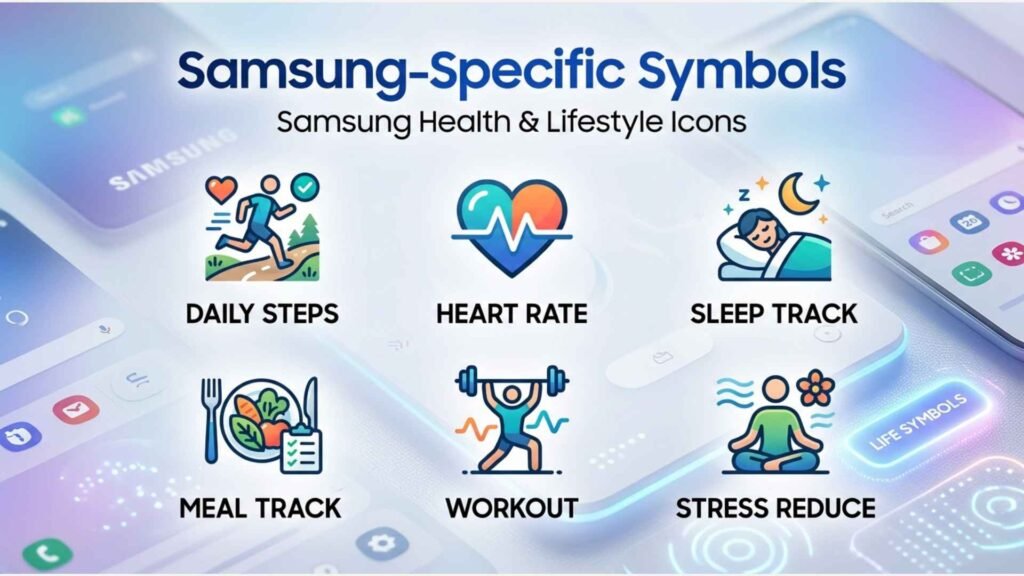
S Pen Connected
An S Pen icon means the stylus is connected and ready on a compatible Galaxy device.
S Pen Disconnected
A crossed-out or separated S Pen icon means the stylus is not connected. Bluetooth-based Air actions may be unavailable until it reconnects.
S Pen Battery Level
Supported models may show the S Pen’s battery status. This refers to the energy used for Bluetooth features, not basic writing on the screen.
Secure Folder Symbol
A folder or lock symbol may indicate activity from Samsung Secure Folder.
Secure Folder creates a protected space for selected apps, accounts, and files. Its notification appearance depends on your privacy and notification settings.
Now Bar and Live Notification Symbols
Newer Samsung interfaces can display live activities such as timers, recordings, music, navigation, workouts, and modes in the Now bar or status area.
These are not traditional permanent status icons. They are interactive updates tied to an ongoing activity. Samsung introduced expanded live-notification and Now bar controls with newer One UI releases.
How Samsung Status Symbols Have Evolved
Samsung status icons developed from the indicator systems used by early mobile phones and the Android operating system.
Older phones relied mainly on signal bars, a battery meter, a message envelope, and a ringtone indicator. Smartphones added Wi-Fi, GPS, Bluetooth, synchronization, app notifications, hotspot sharing, and privacy controls.
As phone displays gained camera cutouts and thinner bezels, usable status-bar space became limited. Samsung and Android therefore began grouping, hiding, simplifying, or redesigning icons.
Modern One UI versions may:
- Display only a limited number of notification icons.
- Replace several icons with a dot.
- Show some system symbols only in the expanded panel.
- Put live activities in the Now bar.
- Change battery and charging graphics.
- Separate the Notification and Quick settings panels.
These changes explain why an icon shown in an older Galaxy guide may look different or may no longer remain visible on a newer device.
Where Samsung Phone Symbols Are Used
Samsung status symbols appear across several parts of the interface.
Status Bar
The narrow strip at the top of the display shows essential system information and notification indicators.
Notification Panel
Swipe down to view complete notifications, hidden icons, warnings, and ongoing activities.
Quick Settings Panel
This panel contains larger control buttons for Wi-Fi, Bluetooth, Airplane mode, Mobile data, Location, NFC, Power saving, and other features.
On newer layouts, swiping from different parts of the top edge may open Notifications or Quick settings separately. Samsung allows users on supported software to change the panels back to a combined layout.
Lock Screen and Always On Display
Selected icons may appear on the lock screen or Always On Display. You can often choose whether notifications appear as dots, icons, or cards.
App Icon Badges
A dot or number attached to an app icon means the app has unread or active notifications. This badge is separate from the status bar symbol.
Common Variations
Samsung phone symbols do not look identical on every device.
Differences may result from:
- Galaxy model
- One UI version
- Android version
- Mobile carrier
- Country or region
- Installed apps
- Display cutout
- Theme or icon style
- Accessibility settings
- Enabled features
A carrier may add unique symbols for Wi-Fi Calling, enhanced LTE, visual voicemail, or specialized 5G service. App developers also control their own notification icons.
Samsung warns that icon appearance and availability can vary by model, software version, carrier, and active features.
Common Misconceptions
Every Symbol Means Something Is Wrong
Most top-screen symbols are ordinary indicators. Wi-Fi, Bluetooth, alarms, battery level, and VPN icons simply report active conditions.
The Wi-Fi Icon Guarantees Internet Access
It only confirms a connection to a Wi-Fi network. The router itself may have no internet service.
The Location Symbol Means Someone Is Spying
It usually means an authorized app is using location services. Check app permissions when the access seems unexpected.
Bluetooth Is Always Connected When Its Icon Appears
On some versions, the symbol means Bluetooth is merely enabled. On others, it appears only when a device is connected.
A Key Symbol Means the Phone Is Locked
The key normally represents an active VPN connection, not the screen lock.
A Missing Icon Means the Feature Is Off
Newer One UI versions hide certain icons until you expand the Notification or Quick settings panel. Samsung specifically notes that some indicators are visible only in these expanded views.
Status Symbols Are Emojis
Status icons are interface graphics, not standard emoji characters. They usually do not have Unicode values that you can type into a message.
Interesting Facts About Samsung Status Bar Symbols
- The Wi-Fi curves represent signal levels. More visible curves usually indicate a stronger connection between the phone and router.
- Signal bars do not directly measure internet speed. A phone can show full bars while the network remains slow because of congestion or carrier limits.
- Some symbols appear only temporarily. Screenshot, download, casting, and sensor-access icons may disappear when the related activity ends.
- App notification icons are not controlled entirely by Samsung. Each app can provide its own simplified monochrome status icon.
- A notification dot can replace several app symbols. This reduces clutter when many alerts are waiting.
- The battery percentage may be integrated into the icon. Its location and design depend on the One UI release and status bar settings.
- The S Pen has separate connection and battery indicators. These appear only on supported Galaxy models.
- A phone can use Wi-Fi in Airplane mode. You can often re-enable Wi-Fi manually while cellular radios remain disabled.
- The location indicator may appear briefly. Weather, emergency services, camera geotagging, and Find My Device can request short location checks.
- Many status icons are hidden during full-screen apps. Swiping down from the top usually reveals them temporarily.
- Themes rarely change an icon’s meaning. A theme may alter color or styling, but the underlying function remains the same.
- Software updates can redesign familiar symbols. A new icon after an update is often an interface change rather than evidence of a malfunction.
Related Symbols and Interface Elements
| Related Element | Meaning | How It Differs |
| App icon badge | Unread or active app notification | Appears on an app icon, not the top status bar |
| Quick setting tile | Button that controls a feature | Interactive control rather than a passive indicator |
| Lock-screen notification | Alert visible before unlocking | May show text, cards, icons, or dots |
| Edge panel handle | Opens Samsung’s Edge panels | Appears along the side of the screen |
| Navigation bar icons | Back, Home, and Recent controls | Located at the bottom of the screen |
| Privacy indicator | Camera or microphone use | Appears only while sensitive hardware is accessed |
| Now bar activity | Live information from an ongoing task | More detailed and interactive than a standard icon |
Frequently Asked Questions
Why is there a strange symbol at the top of my Samsung phone?
It may be a system indicator or an app notification. Swipe down from the top to see the full notification associated with it. If no explanation appears, compare the shape with Wi-Fi, VPN, location, hotspot, power-saving, sound-mode, and network icons before checking recently installed apps.
What does the small key symbol mean on a Samsung phone?
A small key usually means a VPN service is active. The VPN may come from a privacy app, workplace profile, security tool, ad blocker, or network service. Open Settings > Connections > More connection settings > VPN to identify the connected service.
What does the N symbol mean at the top of a Samsung phone?
The N-shaped symbol normally means NFC is enabled. NFC supports contactless payments, compatible tags, and close-range device communication. You can turn it off through the Quick settings panel or under Settings > Connections > NFC and contactless payments.
Why is there a green dot at the top of my Samsung screen?
The green privacy indicator means an app is using the camera, microphone, or both. It commonly appears during calls, video recording, voice messages, camera use, or voice-assistant activity. Open the expanded panel to identify the app if the access seems unexpected.
What does the circle with a line through it mean?
A circle containing a horizontal line commonly indicates Do not disturb. Calls and alerts may be silenced according to your chosen exceptions. It is different from a no-service icon, which usually appears near the mobile signal bars and indicates a network problem.
Why have some Samsung status bar icons disappeared?
A One UI update may have changed when icons appear. Some symbols are now visible only after you open the Notification or Quick settings panel. Notification settings can also replace app icons with a dot or limit how many are shown.
What does an exclamation mark beside Wi-Fi mean?
It means the phone is connected to a Wi-Fi router but may not have working internet access. Restart the router, reconnect to the network, check for a public-network sign-in page, or test another device to determine whether the problem is the phone or internet service.
Can I remove symbols from the top of my Samsung phone?
You can remove many symbols by turning off the related feature or notification. For example, disconnect a VPN, disable hotspot, change sound mode, or block an app’s notifications. Essential indicators such as signal and battery may not be removable through standard settings.
How do I find which app created a notification symbol?
Swipe down to open the Notification panel and locate the matching alert. Press and hold the notification to see its app and settings. You can then silence that category, change its priority, or disable notifications for the app.
Why do Samsung status icons look different from pictures online?
Online examples may come from another Galaxy model, mobile carrier, country, Android version, or One UI release. Samsung regularly updates icon designs and panel behavior, so the same function may use a slightly different shape on another phone.
Key Takeaways
- Samsung phone symbols at the top of the screen provide quick information about connectivity, battery, calls, alerts, privacy, and active features.
- Right-side icons usually represent system status, while left-side icons often represent app notifications.
- Signal letters such as LTE and 5G identify the current mobile-data network.
- A key usually means VPN, an N means NFC, and a location pin means location access.
- A green privacy dot indicates camera or microphone use.
- Some symbols appear only after you swipe down.
- Icon designs vary by Galaxy model, carrier, region, Android version, and One UI release.
- Swiping down and reading the related notification is the most reliable way to identify an unfamiliar symbol.
Conclusion
The Samsung phone symbols at top of screen form a compact dashboard for your Galaxy device. They tell you whether your phone is connected, charging, muted, sharing data, using location, receiving notifications, or waiting for your attention.
Although unfamiliar icons can look confusing, most are simple status indicators rather than serious warnings. When you do not recognize one, open the Notification panel, check the active Quick settings buttons, and review the app or system message connected to it. Once you understand the main categories, the entire status bar becomes much easier to read.

I am Daniel Brooks, a language researcher and writer with a strong interest in how people use English in everyday conversations. I contribute to LearnNestly because I enjoy turning confusing language topics into straightforward lessons. My goal is to help readers understand not only what a word or phrase means, but also when and how to use it naturally. I focus on clear examples, practical explanations, and useful language knowledge that readers can remember.
Books:
- The Practical English Guide
- Understanding Everyday Words
 Amelia Carter